
Whether you are managing a growing team, administrating a game server community, or expanding your backend infrastructure, there comes a point where you need to grant multiple people access to your server. By default, Windows Server OS restricts Remote Desktop Protocol (RDP) access.
This guide will walk you through exactly how to create a new user and safely grant them Remote Desktop permissions. If you're still looking for the right hardware to host your environments, CentriXNodes offers premium Windows VPS and Dedicated Servers featuring instant setup, rock-solid uptime, and the raw performance you need to keep your projects running flawlessly.
Here is how to get your new users connected:
Step 1: Open Computer Management
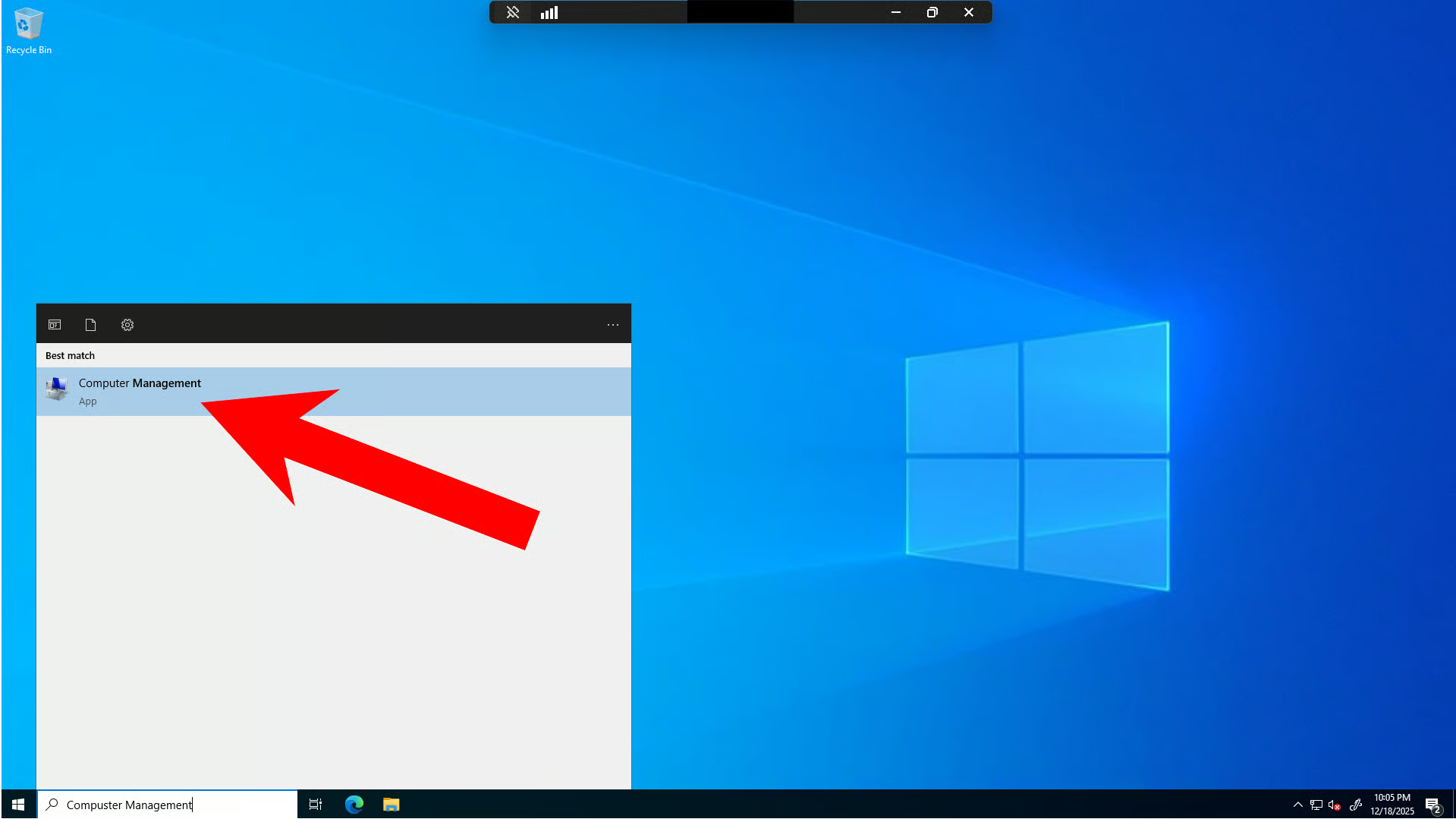
To begin adding a new user for Remote Desktop access, search for Computer Management in the Windows search bar and click the app from the search results to open it.
Step 2: Navigate to Local Users and Groups
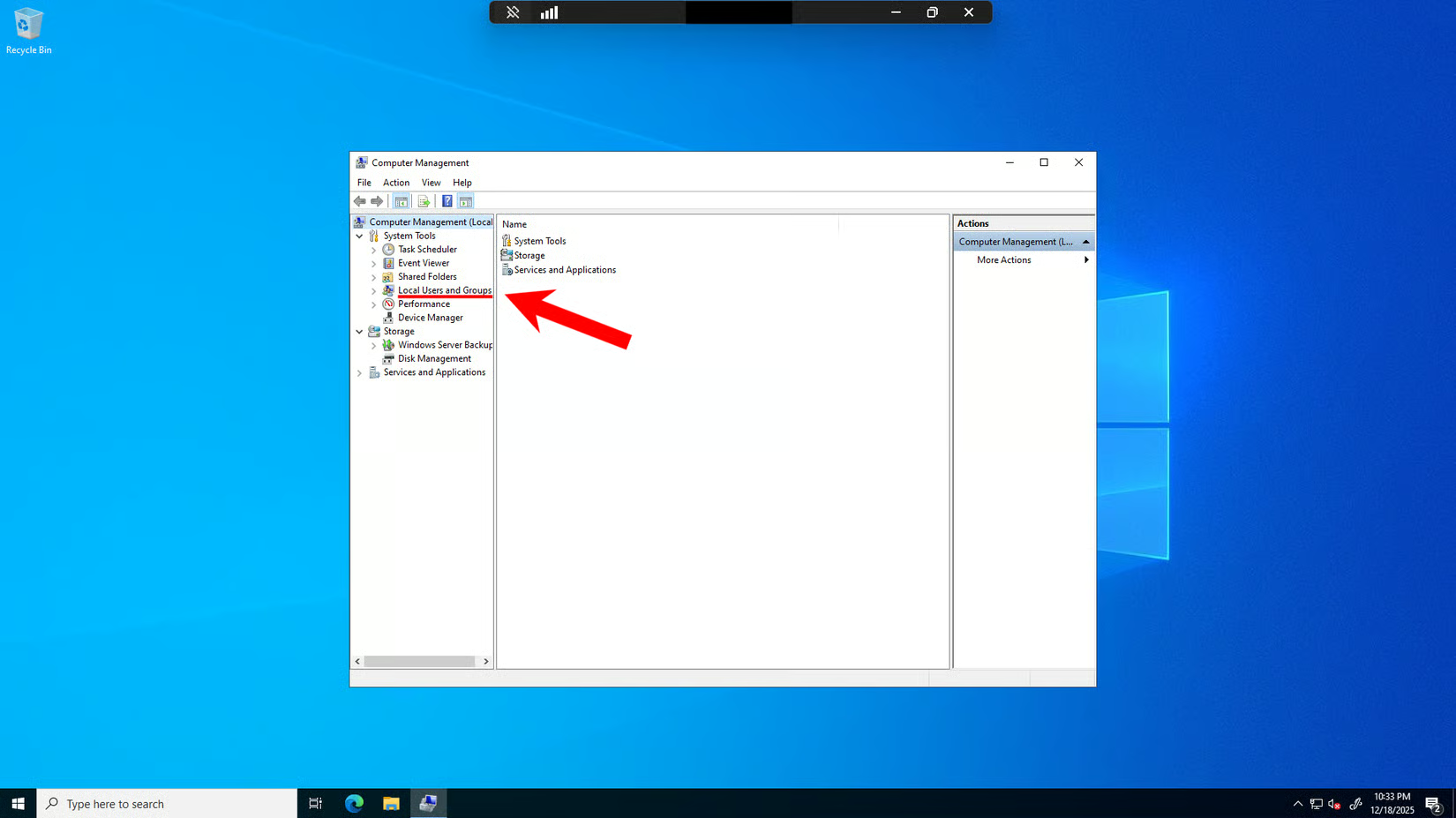
In the left-hand tree structure, navigate to System Tools → Local Users and Groups.
Step 3: Create a New User
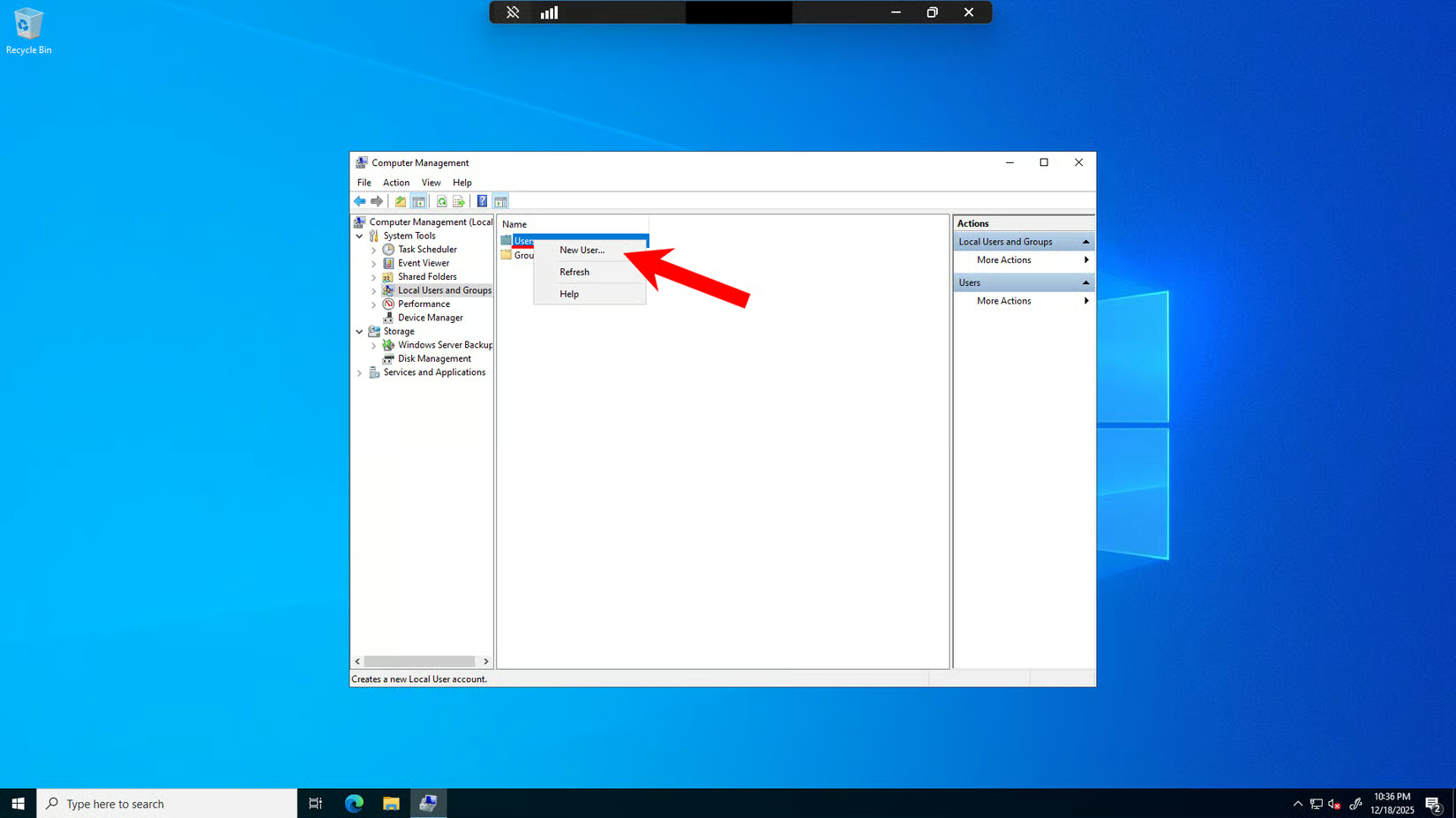
Expand the Local Users and Groups directory and select Users. Right-click on Users in the right panel and select New User from the context menu.
Step 4: Fill in User Details
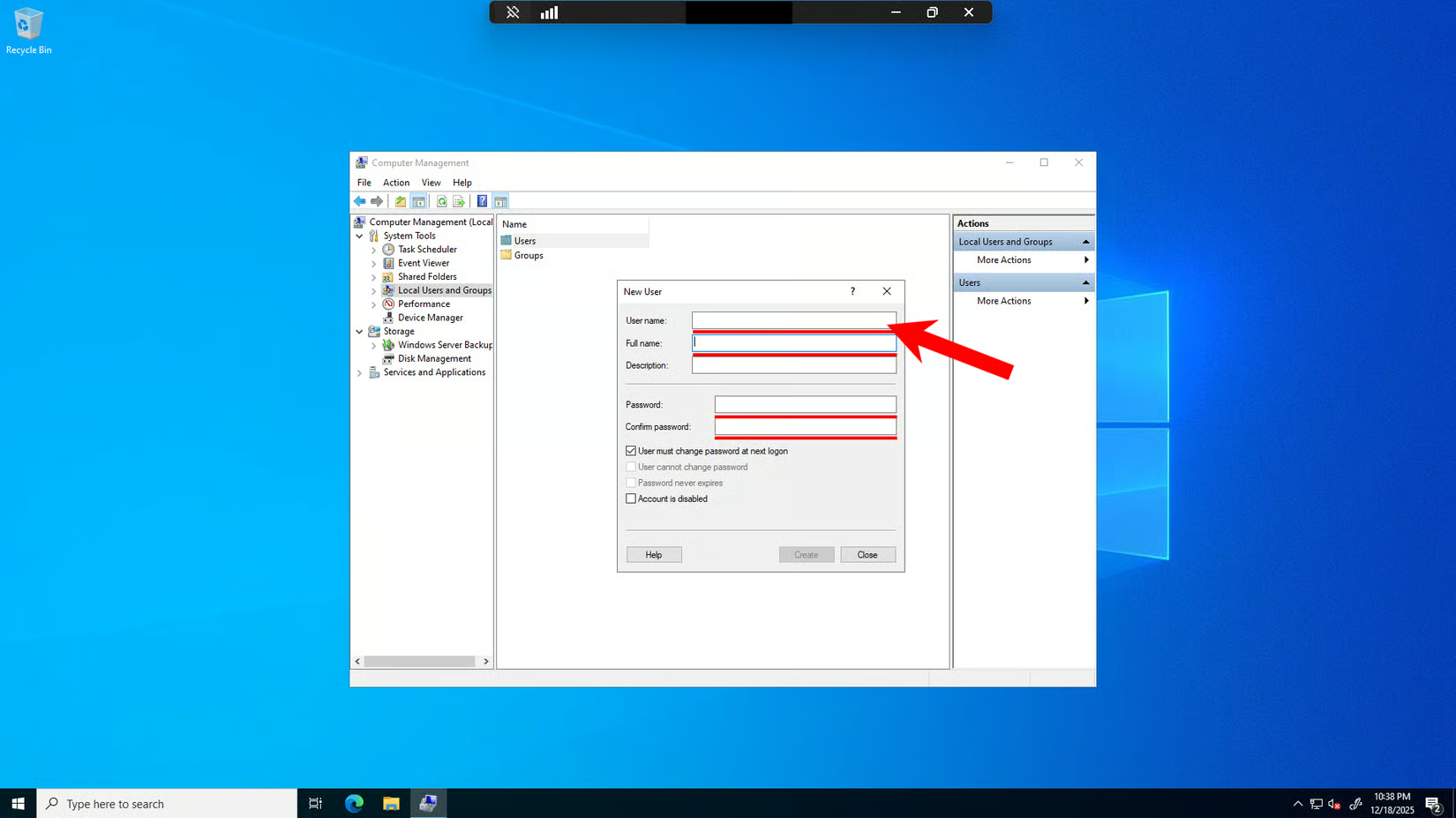
A “New User” dialog box will appear. Fill in the following fields:
- User name: Enter a username for the new account.
- Full name: (Optional) Enter the full name of the user.
- Description: (Optional) Add a description for this account.
- Password: Enter a strong password for the account. It is recommended to use a combination of uppercase letters, lowercase letters, numbers, and special characters to meet Windows security requirements.
- Confirm password: Re-enter the password to confirm.
Step 5: Uncheck Password Change Requirement
After filling in the details, uncheck the User must change password at next logon checkbox.
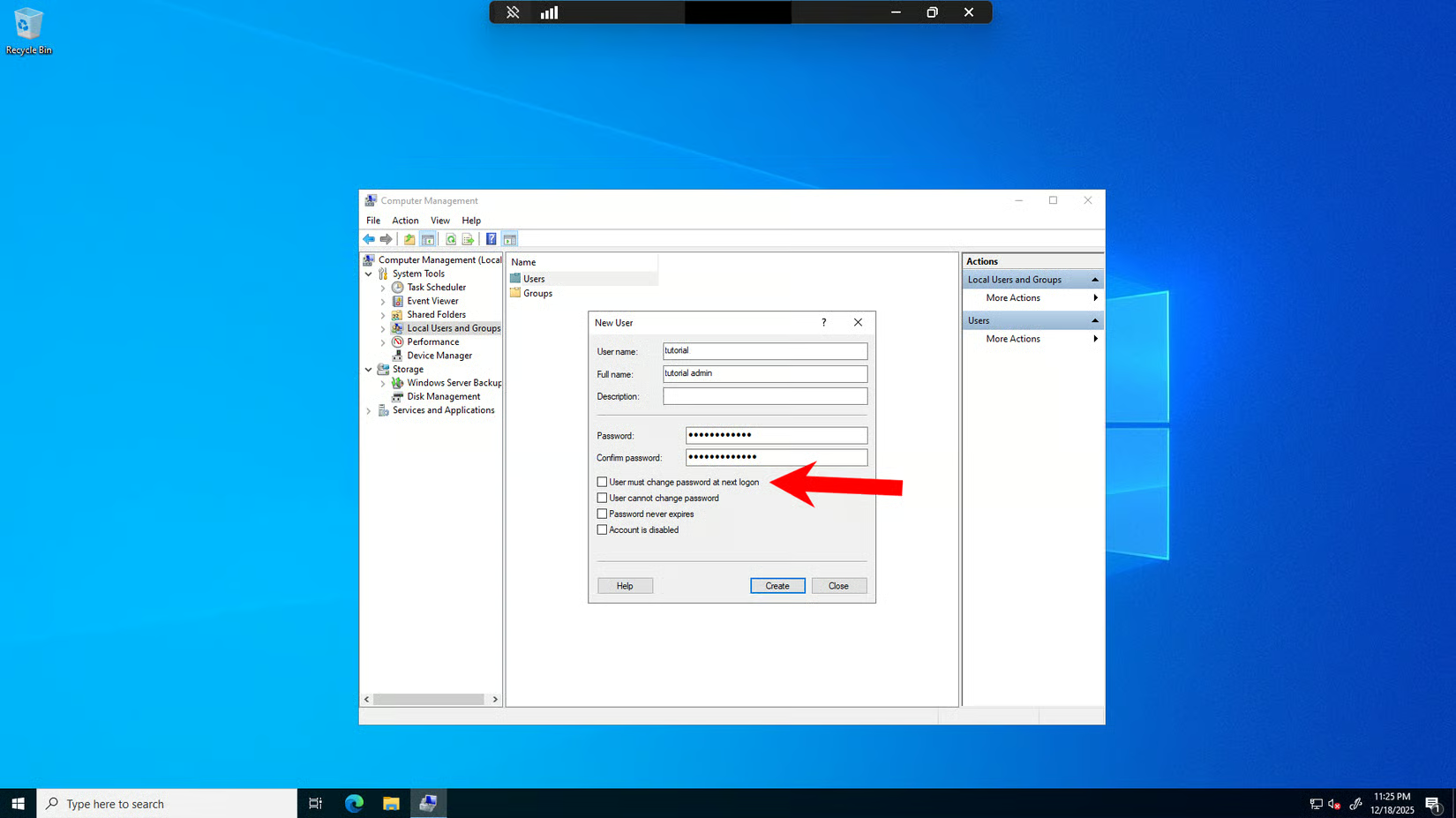
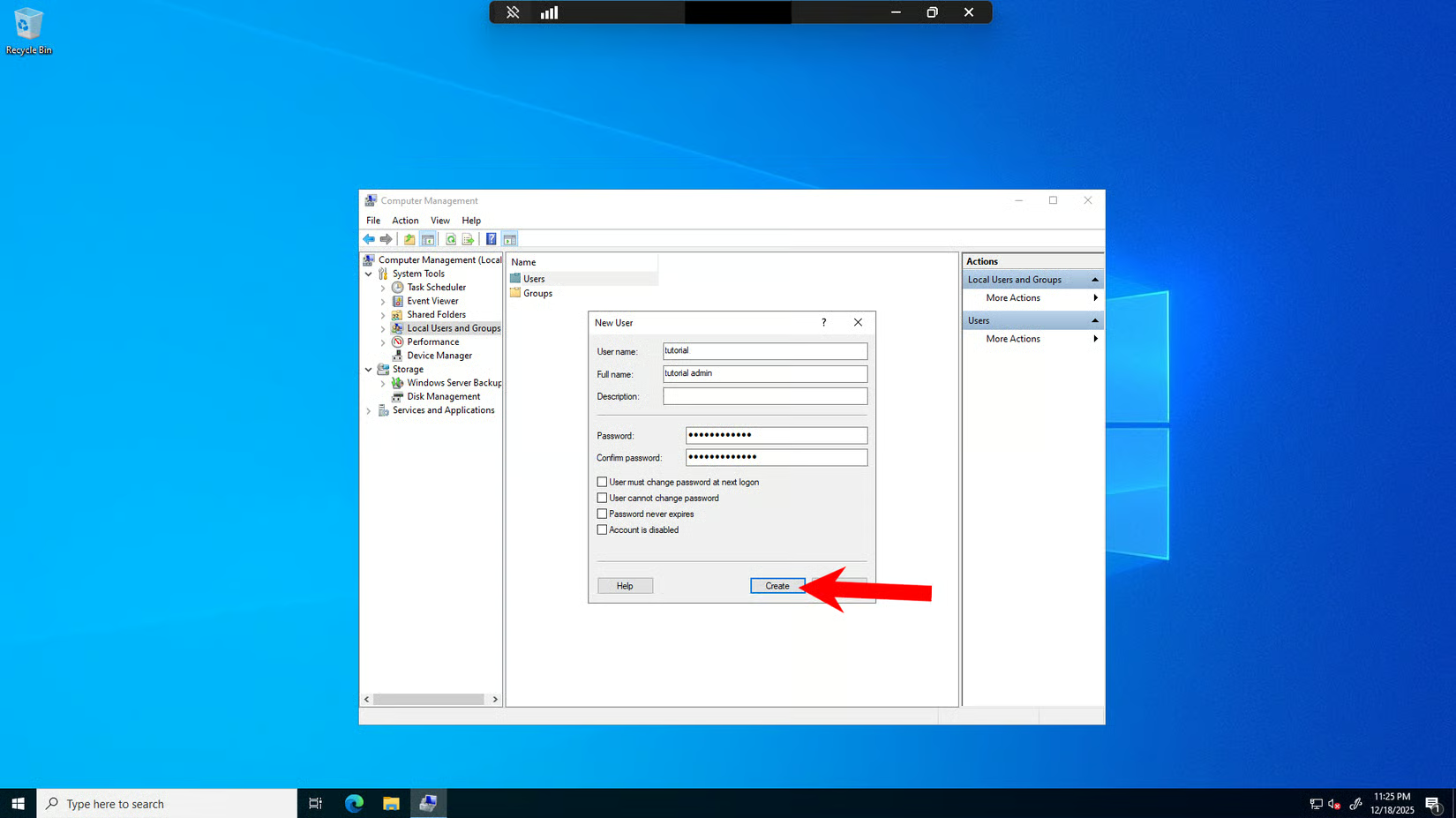
Step 6: Create the User Account
Click the Create button. This will create the user account. You can create multiple users by clicking Create again, or click Close when you’re done.
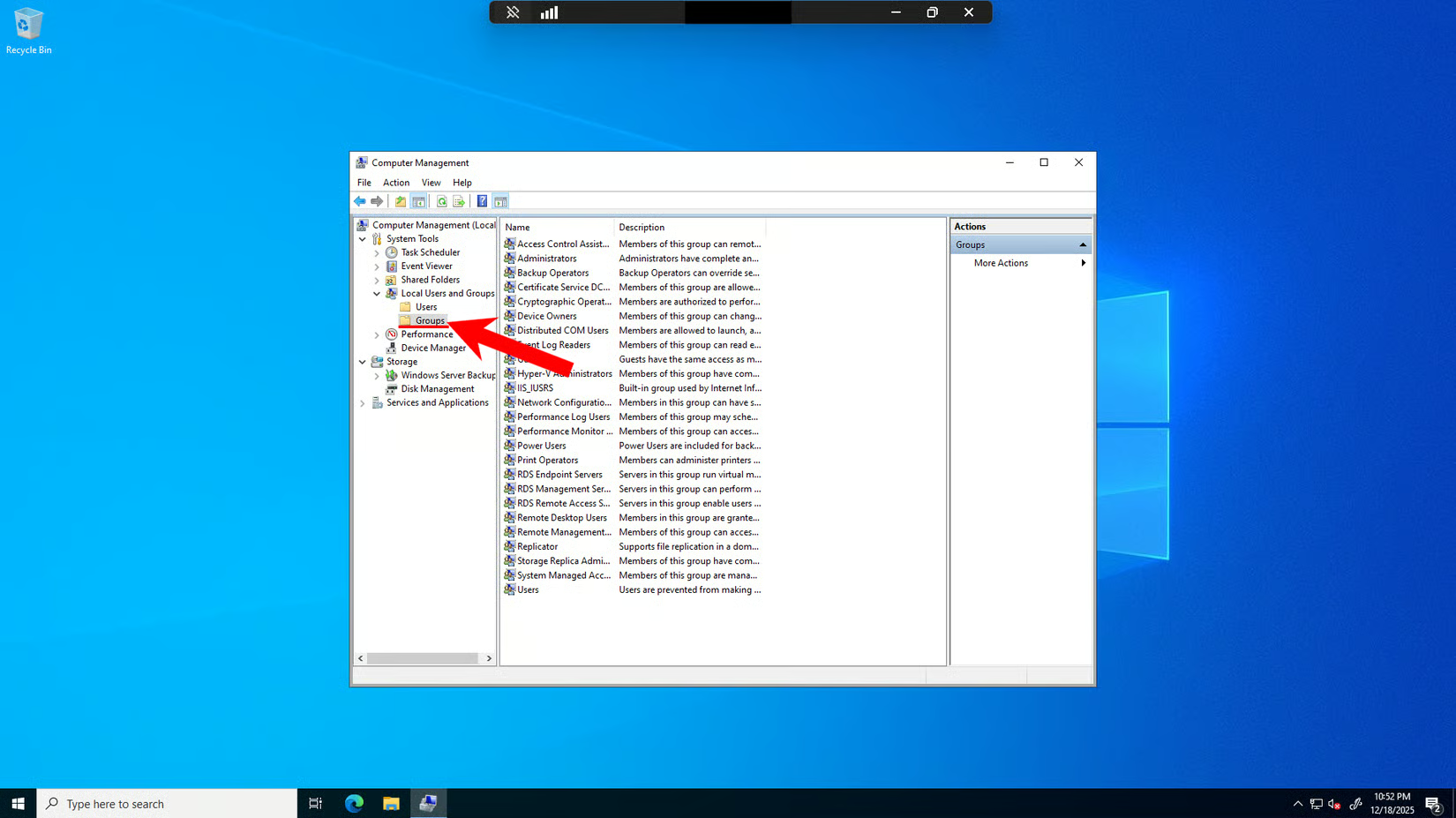
Step 7: Navigate to Groups
Now that the user account is created, you need to add it to the Remote Desktop Users group. In the left navigation pane, expand Local Users and Groups and select Groups.
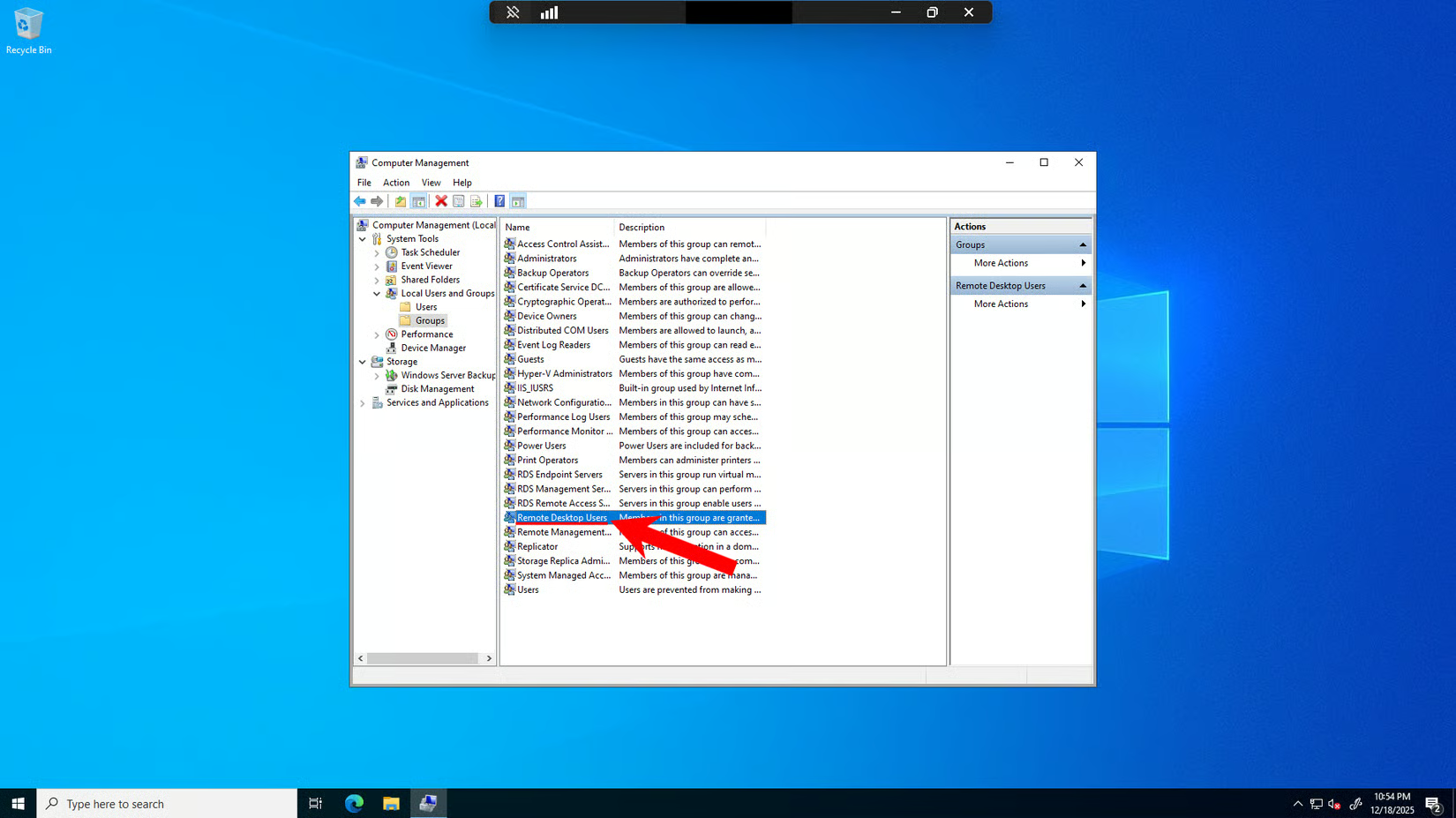
Step 8: Select Remote Desktop Users Group
In the middle pane, you’ll see a list of all local groups. Find and highlight the Remote Desktop Users group.
Step 9: Open Remote Desktop Users Properties
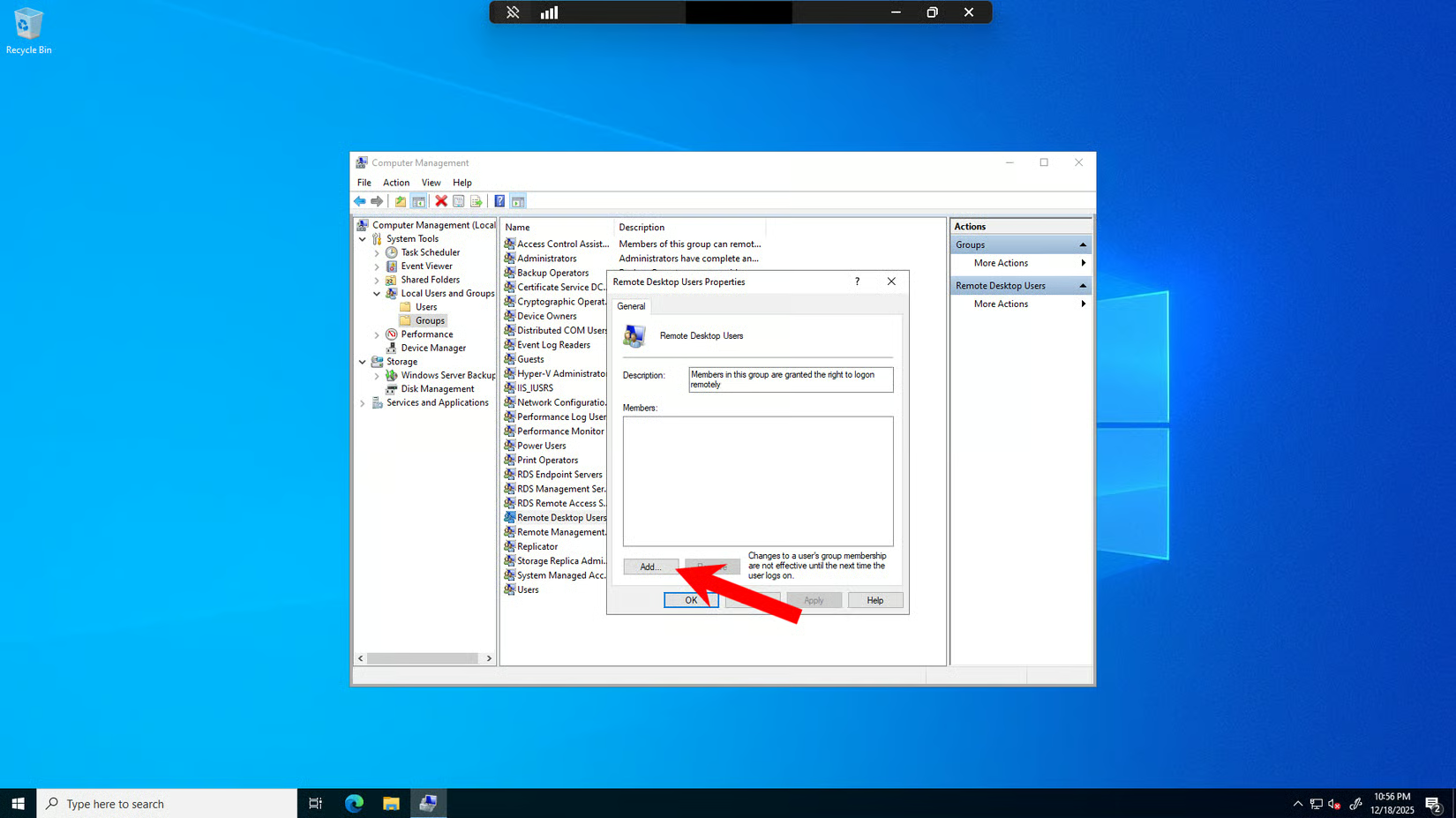
Right-click on the Remote Desktop Users group and select Properties from the context menu (or double-click it). The “Remote Desktop Users Properties” dialog will open, showing the group’s general information. Click the Add button.
Step 10: Enter User Name
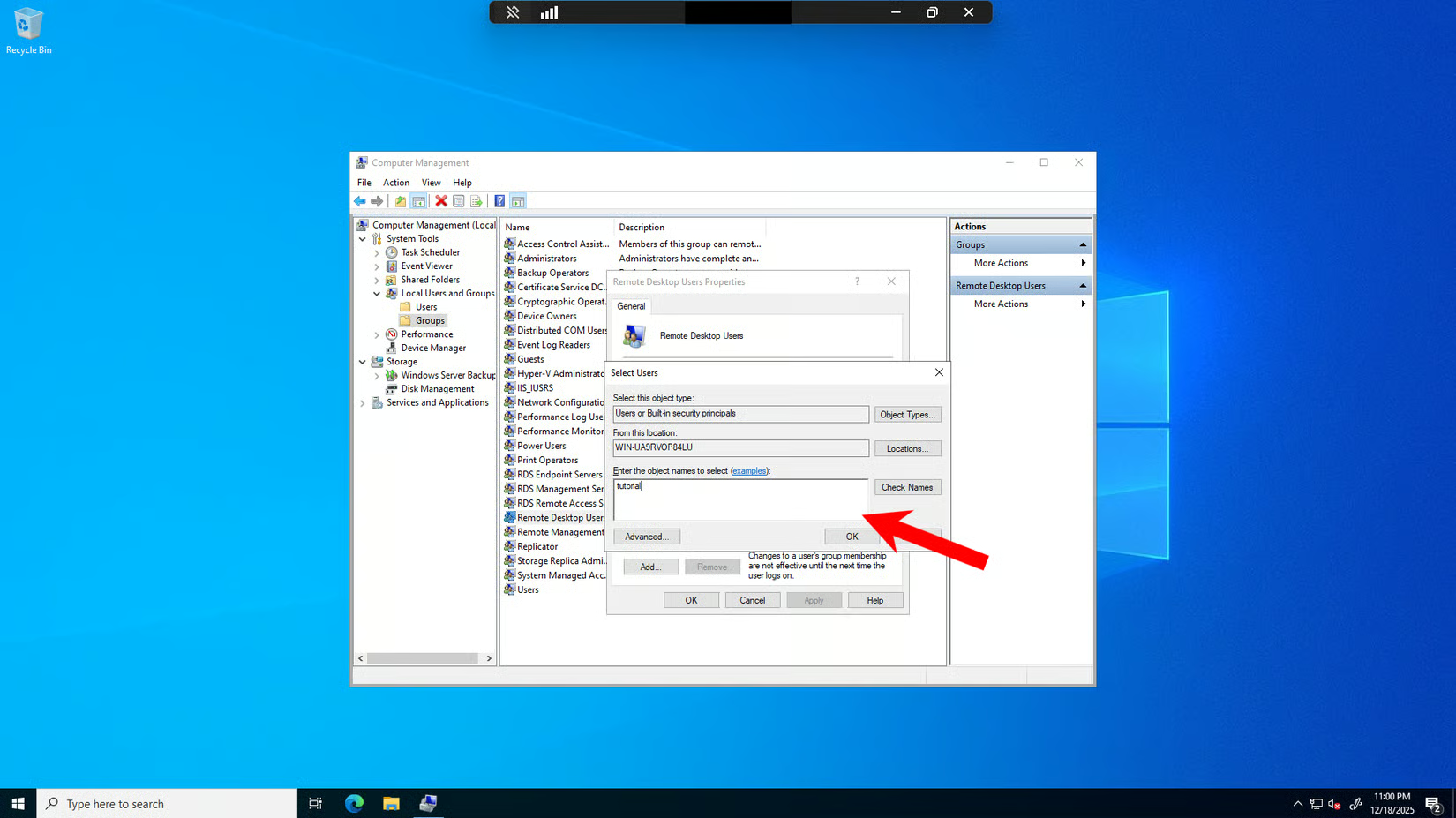
The “Select Users” dialog will open. Type the username of the user you created earlier in the text field. (You can also click Advanced to search for users).
Step 11: Verify User Name
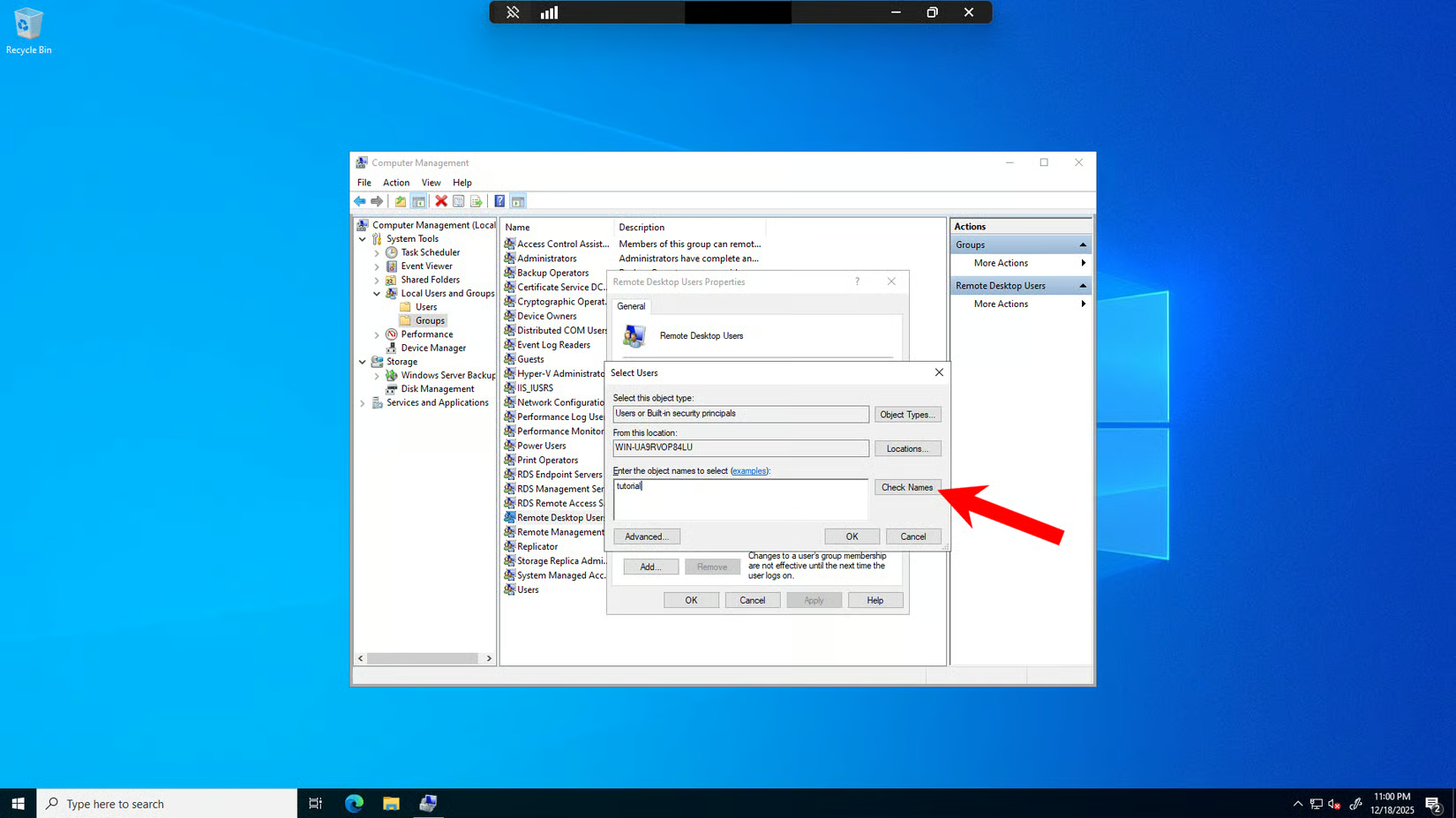
Click Check Names to verify the username. Windows will underline the username if it’s valid and recognized. Once underlined, click OK to proceed.
Step 12: Complete Adding User to Group
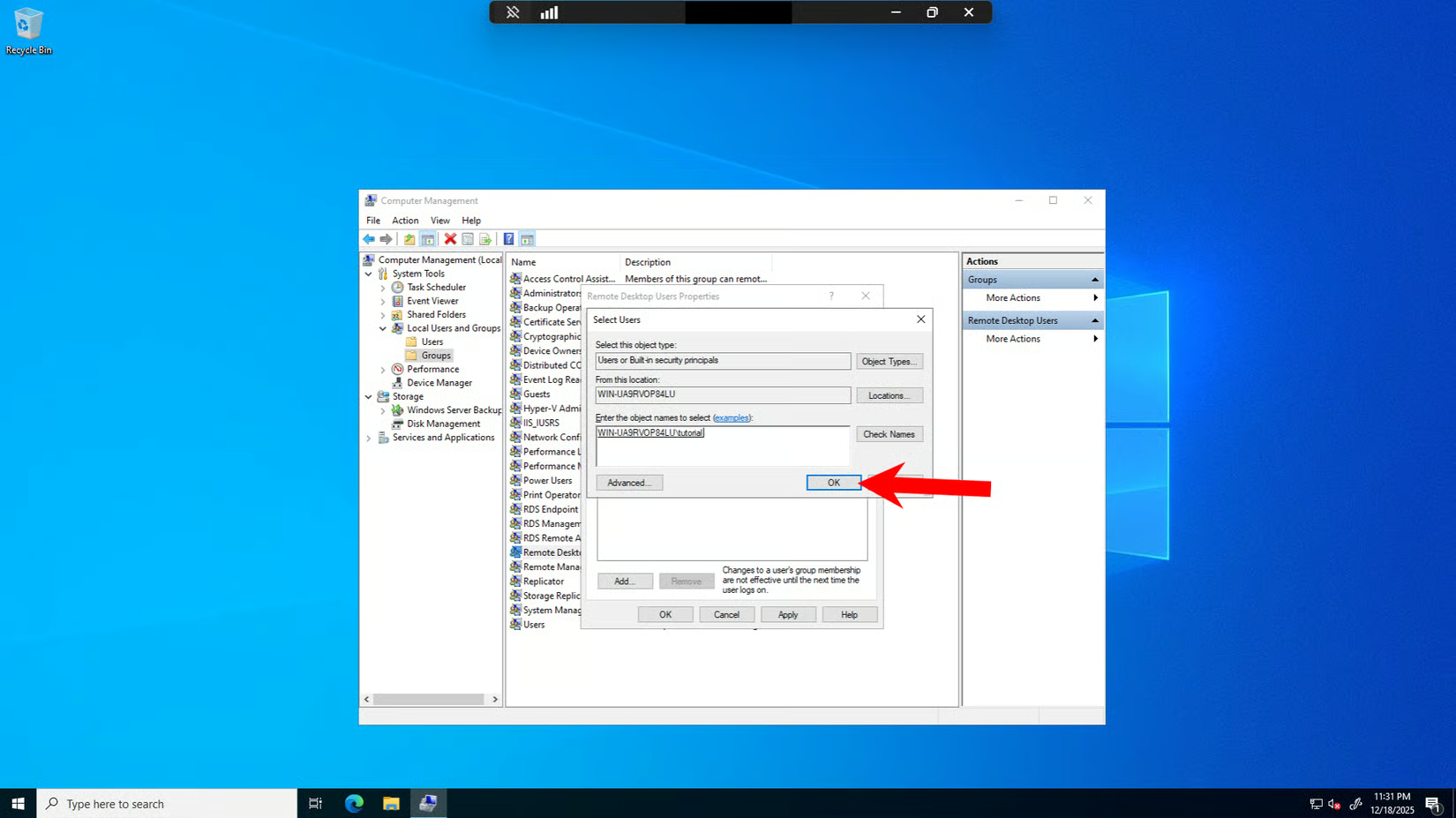
The user will now be added to the Remote Desktop Users group. You’ll return to the properties dialog where you can see the user listed in the Members section. Click OK to close the dialog and complete the setup.
Congratulations! You’ve successfully created a new user account, and they can now log in via Remote Desktop using their new credentials.
Need to scale your infrastructure?
Managing servers shouldn't be a headache. At CentriXNodes, we deliver high-quality components at affordable prices, backed by an incredibly friendly support staff that is available 24/7. Level up your hosting experience today and check out our latest high-performance infrastructure solutions.